The reason people want to schedule WhatsApp messages is almost never the writing. It is that the right moment to send is nine tomorrow morning, and they are thinking about it now, at eleven at night. WhatsApp itself has no answer for that, and the phone-based workarounds all share the same weakness: the phone has to be awake, unlocked and running the app at the moment the message is due.
In Spun the send happens on the server. You write the message, choose a time, and close the laptop. Whether your phone is charging in another room makes no difference.
How to schedule WhatsApp messages in Spun
- 1
Open the scheduler
In any conversation, click the clock icon next to the send button.
- 2
Pick a time
Use a preset such as in one hour or tomorrow morning, or open the picker for an exact date and time. Times in the past are refused rather than silently accepted.
- 3
Write the message
Text, or an image, document or voice note. Confirm, and it joins the queue for that conversation.
- 4
Check the queue
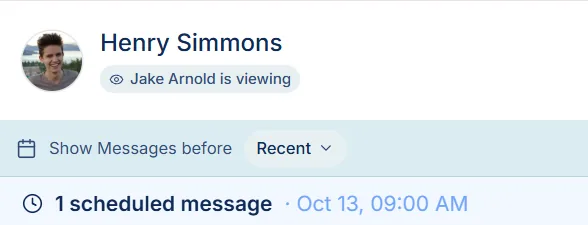
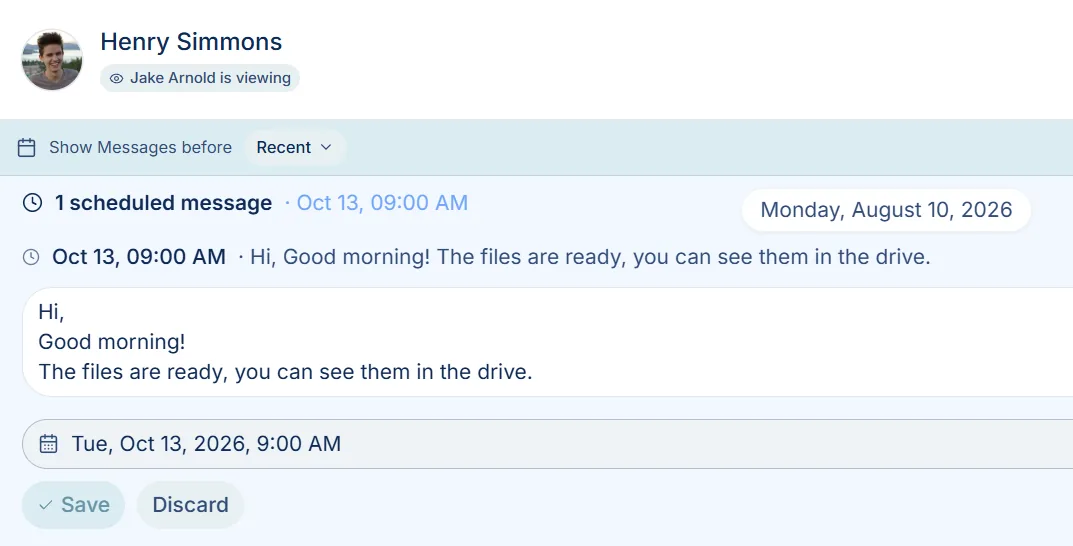
The conversation shows a banner listing what is still pending for it, and the Scheduled panel in the sidebar shows every pending send across the whole workspace.
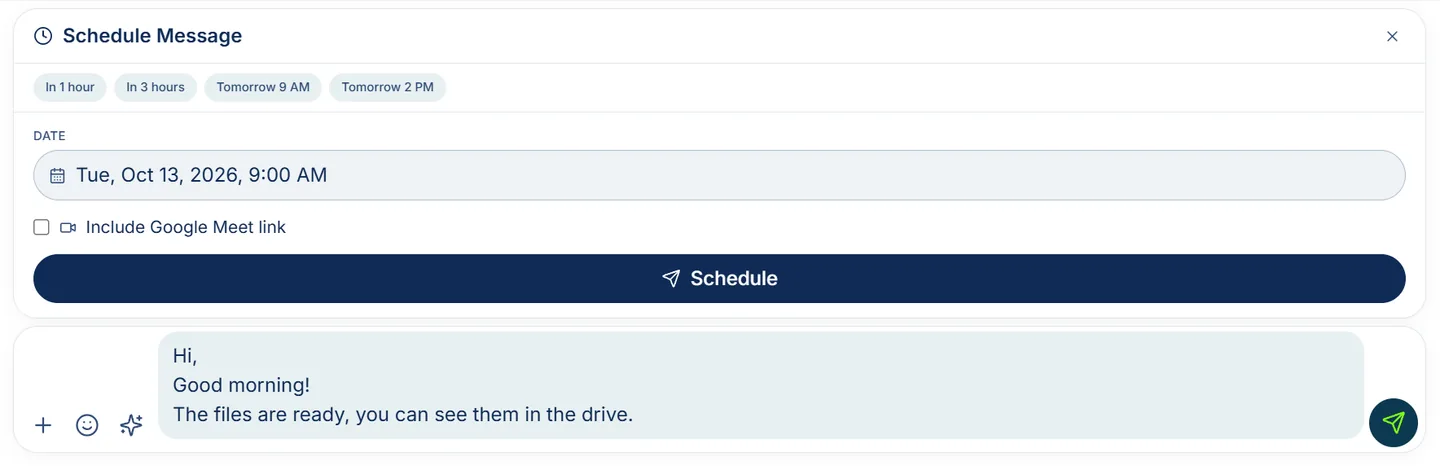
If your workspace has Google Meet connected, the scheduler can attach a fresh Meet link to the message, which is the short path from "let us talk Thursday" to a message that already carries the room.
Why it sends without your phone
Spun keeps a live connection to your WhatsApp line, and a background job on Spun's side does the sending. It wakes on a short cycle, picks up whatever has come due, and sends it through your line. That is the whole mechanism, and it is worth understanding because it explains both the strength and the one real dependency.
The strength: the send is not tied to any device. Your laptop can be shut, your phone can be in a drawer, and the message still goes at the time you chose. The dependency: it goes through your connected WhatsApp line, so if that line is disconnected when the message comes due, the send fails rather than silently waiting forever. When that happens the message is marked failed with the reason attached, so you can see what went wrong and retry it rather than discovering a week later that a follow-up never left.
Related: Keeping your WhatsApp line connected
Changing your mind after you have scheduled
A scheduled message is not frozen. Until it sends you can move it to a different time, rewrite the text, or cancel it, from either the conversation banner or the Scheduled panel.
- Filter by status: pending, sent, failed, cancelled, or everything.
- Edit the send time on a pending message without rewriting it.
- Cancel one message, or cancel everything pending in one action.
- Retry failures rather than retyping them.
- Clear out old sent or cancelled entries when the list gets noisy.
Beyond a plain text message
- Media: schedule an image, a video, a document or a voice note, not only text.
- WhatsApp status: schedule a status post rather than remembering to publish it at the right hour.
- Forwards: schedule an existing message to be forwarded on, instead of copying it out and pasting it back.
- Calendar visibility: if you sync Spun with Google Calendar, each scheduled message appears there as a short event, and once it has gone the event is relabelled to say whether it sent or did not.
Related: The calendar inside your inbox
Scheduling one message is not the same as a campaign
These two get confused, and picking the wrong one causes real problems. A scheduled message is one message to one conversation at one time. A campaign is one message to many people, and it needs completely different machinery: recipient selection, personalisation, pacing between sends so the line is not flagged, and delivery reporting afterwards.
If you find yourself scheduling the same text to fifteen conversations one at a time, stop and use a broadcast instead. It will pace the sends properly, and it will tell you what actually arrived.
Related: How broadcast campaigns work
Limits worth knowing
- There is no repeat. Each scheduled message is a single send at a single time; a weekly reminder is four separate messages, or a job for the reminder and campaign tools.
- It needs a connected WhatsApp line at the moment it is due. A disconnected line means a failed message, visible with its reason, not an indefinite wait.
- Times follow your workspace timezone. Scheduling across timezones means thinking about the recipient's hour, not just yours.
- A cancelled message stays in the list as cancelled rather than vanishing, which is deliberate: you can see that it was meant to go and did not.